• Quick note - the problem with Youtube videos not embedding on the forum appears to have been fixed, thanks to ZiprHead. If you do still see problems let me know.

Merged WIfi connection issues

Lothian

should be banned
Joined
Apr 3, 2002
Messages
20,210
Location
Earth, specifically the crusty bit on the outside
I am having problems connecting to the internet with my pc and getting any speed.

My old PC packed in and wouldn't connect to the internet but woudl connect to the router. I bought a new PC and after appearing to run Ok for the first week the problerm has returned. I was getting the no internet problem although it was conencting to the router. I tried


netsh winsock reset
netsh int ip reset
ipconfig /release
ipconfig /renew
ipconfig /flushdns

and reainstalling the diver, with no luck. In the end I just reset the PC but the problem is back. I am only connecting with wifi.
the router and computer have bothe been restarted.

Running a speed checker I got the folowing. I have fibre into the house and think I was getting downloawd speeds when it was installed up near 100 Mb/s

[th width="152.984px"]
Ping​
[/th][th width="157.609px"]
Download​
[/th][th width="153px"]
Upload​
[/th]​
[td]
32 ms
[/td][td]
0.76 Mb/s
[/td][td]
0.72 Mb/s
[/td]

My phone conecting to the same router is giving
Ping 29ms Download 26mb/s and upload 19 Mb/s

Connecting the computer to my phone a hotspot (phone conencted to wifi with mobile off) I get

[th width="152.984px"]
Ping​
[/th][th width="157.609px"]
Download​
[/th][th width="153px"]
Upload​
[/th]​
[td]
38 ms
[/td][td]
17.84 Mb/s
[/td][td]
13.67 Mb/s
[/td]

I have an externder for the wifi, connecting to that I get

[th width="152.984px"]
Ping​
[/th][th width="157.609px"]
Download​
[/th][th width="153px"]
Upload​
[/th]​
[td]
18 ms
[/td][td]
8.62 Mb/s
[/td][td]
11.32 Mb/s
[/td]

Using my work laptop and connecting to my wifi via a VPN I get Ping 61ms Download 26 mb/s upload 26 mps

Any clues?
 
Have you tested with connecting via LAN cable to the router directly to see how fast the internet is coming in ?
 
I am having problems connecting to the internet with my pc and getting any speed.

My old PC packed in and wouldn't connect to the internet but wouLd connect to the router. I bought a new PC and after appearing to run Ok for the first week the problerm has returned. I was getting the no internet problem although it was conencting to the router. I tried


netsh winsock reset
netsh int ip reset
ipconfig /release
ipconfig /renew
ipconfig /flushdns

and reainstalling the diver, with no luck. In the end I just reset the PC. i am getting the intenet but the speed problem is back. I am only connecting with wifi. The router and computer have bothe been restarted.

Running a speed checker I got the following. I have fibre into the house and think I was getting downloawd speeds when it was installed up near 100 Mb/s
Ping

32 ms
Download
0.76 Mb/s
upload
0.72 Mb/s


My phone conecting to the same router is giving
Ping 29m
Download 26mb/s and
Upload 19 Mb/s

Connecting the computer to my phone a hotspot (phone conencted to wifi with mobile off) I get
Ping
38 ms
Download
17.84 Mb/s
Upload
13.67 Mb/s

I have an externder for the wifi, connecting to that I get
Ping
18 ms
Download
8.62 Mb/s
upload
11.32 Mb/s


Using my work laptop and connecting to my wifi via a VPN I get Ping 61ms Download 26 mb/s upload 26 mps


Any clues?
 
Last edited:
Curious that the 3 devices produced such different speeds.

Sticking with the more primitive switching-it-off-and-on-again school of repair, do you have a device which does the media conversion from fibre optic to copper cable, and have you restarted that? Since we got fibre to the home, we've had both the usual hub/router and also a small wall box where the incoming fibre terminates and which links to the hub with a Cat 5 cable. We've had to power-reset that at least once.

I suspect it's too low level a device to cause a difference between different computers, but it might be worth a try.
 
Contention? One place we rented an office in I used a Wifi analyser app to test for problems and found the nearby school had a bunch of BYOD access points on the same channel.
At home I had a problem for a while as a critical cable (FTTC to the router) was poor quality.
When my street was upgraded to FTTP there were a number of people reported their speed dropped as new premises were added. Contacting the ISP (zzoomm) their engineers fixed it. I think it was some suboptimal configuration that wasn't obvious until the load increased.
Have you tried traceroute ?
Random thoughts.
 
Curious that the 3 devices produced such different speeds.

Sticking with the more primitive switching-it-off-and-on-again school of repair, do you have a device which does the media conversion from fibre optic to copper cable, and have you restarted that? Since we got fibre to the home, we've had both the usual hub/router and also a small wall box where the incoming fibre terminates and which links to the hub with a Cat 5 cable. We've had to power-reset that at least once.

I suspect it's too low level a device to cause a difference between different computers, but it might be worth a try.
Yes I have turned that on and off and unplugged it
 
Last edited:
I'm wondering if it is an IP clash.

Does the pc use DHCP, or is it a fixed IP?

What are the DHCP server settings on the router?

Can you see what other devices are connected to it, and their IPs?
 
Yes it has both and no. The router only appears once in the list
When odd stuff happened with our previous router we renamed one of the wifi frequencies (adding a "5" on the end of the 5GHz SSID and did the same to its password). That made the two frequencies appear as different hubs, which helped us diagnose why some devices kept losing connection while others had no issue.
 
I'm wondering if it is an IP clash.

Does the pc use DHCP, or is it a fixed IP?

What are the DHCP server settings on the router?

Can you see what other devices are connected to it, and their IPs?
There are 9 devices at 2.4 GHz and 6 at 5GHz. Not sure if the desktop listed is the one. Those are the 5 GHz connections.
 

Attachments

  • 1740344068235155619897582435916.jpg
    1740344068235155619897582435916.jpg
    1.6 MB · Views: 6
Last edited:
There are 9 devices at 2.4 GHz and 6 at 5GHz. Not sure if the desktop listed is the one. Those are the 5 GHz connections.
Thanks. If that is the desktop, it confirms it is using DHCP, which is normal in a household setup. So it is unlikely it is an IP clash.

Can I ask what the wireless hardware is in your desktop? Is it built in? An installed wireless card (with an aerial)? External dongle plugged into a USB port?

I agree with Zaganza by testing using a cable connection if possible. If the speed dramatically improves then you have a PC wireless issue. If it does not, it is some obscure network setting glitch between PC and router (harder to diagnose).

One thing I found does tend to help with LAN testing. Assuming you have anti-virus installed, disable all levels of the Windows firewall. Windows will get all annoyed, but do it anyway. I have had PCs with earlier versions of Windows suddenly perk up and run well just by doing this. It means you will need to tune the firewall settings later.
 
Have stuck a Lan cable from a splitter I have attached to the WiFi extender and am getting 70+MB/s. I would have preferred to use WiFi but it seems wires might be the way to go.
Good test. Means your PC likely has zero network problems, and the issue is limited to just the wifi situation on that PC.
 
There's no cobol in modern consumer computer network solutions.

It's no accident that you've failed to offer a cobol solution to the OP's problem.
The correct response should have been "OK, Boomer". ;) And you would be surprised what software systems still run COBOL today.

Back on track, his problem appears to be the inbuilt wireless card. It seems to be a weak signal problem, not software, because it still connects OK but is just very slow. An added info point is the inordinately rapid drop-off in signal strength the further from the WAP. It sounds like inadvertent shielding, a problem we often dealt with using modern PCs in hospital operating theatres (which are built as Faraday cages for X-rays).

Oh that's right! We boomers don't know about modern consumer computers. ;) Dude, we INVENTED them! :D
 
What's the point of buying a PC, instead of a laptop or tablet, if it doesn't have a high speed ethernet port?


Yeah this. If it doesn't move and has an RJ45 port I cable it. I separate my 2.4GHz & 5GHz networks too, partly because it makes connecting devices like switches & smart bulbs that only work on the older standard easier, and partly because I have a few things that either the controlling app is no longer available for, or I just can't remember what it was!
 
Power settings - I've seen desktop PCs running as if they are on "power saving" settings designed for a laptop on battery power.
 
Power settings - I've seen desktop PCs running as if they are on "power saving" settings designed for a laptop on battery power.
Good point. But power settings don't slow down wifi, they disable it periodically. Do a network refresh (or manual disconnect/reconnect, or a power restart) and it comes back hot and strong. As you say, proper fix is setting "power always on".

But related to that, now you remind me, could also be speed negotiation settings. Some older model wifi cards had trouble negotiating speeds with newer WAPs. They would end up running at the lowest speed they supported, often 8Mb or 10Mb/sec (old coax LAN speed). Manually setting their speed at 100Mb/sec or 1Gb/sec and they worked fine. Driver updates often fixed this. Then this glitch all but disappeared on newer laptops and network cards.
 
Back on track, his problem appears to be the inbuilt wireless card. It seems to be a weak signal problem, not software, because it still connects OK but is just very slow. An added info point is the inordinately rapid drop-off in signal strength the further from the WAP. It sounds like inadvertent shielding, a problem we often dealt with using modern PCs in hospital operating theatres (which are built as Faraday cages for X-rays).
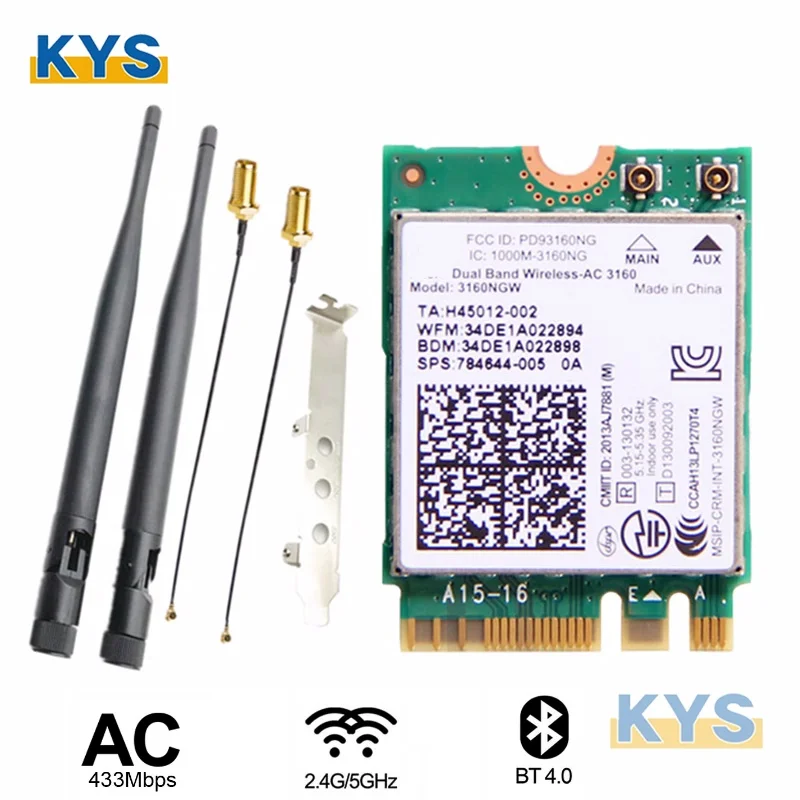
Lothian, can I check if you have the complete wifi kit with components that look like this? The important parts I'm checking are the rabbit-ear antennas, small cables and the PCI end plate. I suspect these appear to be installed.
S1a6d7332f672475f83f584166b75ab4bi.jpg_960x960.jpg
 
Before we end up redesigning the Wi-Fi network in Lothian's house has anyone just updated the driver for it? That, generally, resets the adapter as well as resolves a metric ◊◊◊◊ ton of issues with Wi-Fi cards. The problem with us IT folk is we generally look 7 steps beyond the easiest step that resolves most issues.

To me, I'd update the driver or else I'd do what others have said and separate my Wi-Fi bands. I've seen that clear up a ton of issues too, including my own anecdotal stories of resolving issues with my chromecasts. I don't think his case is causing faraday style issues with his network card as that would make it quite possibly the worst computer case in history. I wouldn't overthink it.
 
Last edited:
I don't think you'll run into too many networking guys that would argue with being hardwired in. Good luck.
 

Back
Top Bottom