• Quick note - the problem with Youtube videos not embedding on the forum appears to have been fixed, thanks to ZiprHead. If you do still see problems let me know.

My wifi connection really stinks

Meed

boy named crow
Joined
Jul 29, 2009
Messages
5,206
I moved recently and I signed up for a Comcast 50 Mbps connection. I have a Motorola SURFboard SB141 modem and a cisco Linksys E800 wireless router.

When I connect to the router by ethernet I seem to get a good connection (near 50 mbps on speedtest.com) although I haven't tested this for significant lengths of time.

The problem: my wireless connection is not good. Youtube videos can be streaming fine at 480 one minute then auto adjust to 180 the next minute. I usually get major lag trying to play League of Legends. Not so much a smooth consistent delay as repeated bursts of unresponsiveness where it's like I get no information from the server for a few seconds and then all of a sudden I'm dead.

I get anything from 1.2 to 20 Mpbs on speedtest.com on my wireless connection. Right now I'm getting a 33 ms ping, 11.35 Mbps download speed and 10.31 Mbps upload speed from that site. But I usually have 4 or 5 out of 5 bars. Under "Wi-Fi Status" (opened from somewhere in the network section of the control panel) it says "Speed: 65.0 Mbps". And currently 148,710,723 bytes sent and 2,201,977,572 bytes received (not sure that information's of any use). When I click "diagnose" it says "Your computer appears to be correctly configured, but the device or resource (DNS server) is not responding)." Seems odd since I'm connected. I'm not sure about packetloss. I tried to change my registry so that my Wi-Fi status would show packetloss, but it didn't work.

Attempted solutions: I made sure my IP and DNS things were set to automatic, ran flushdns, registerdns, release and renew ipconfig commands and still got the same message from running "Diagnose". Of course I've reset the modem and router. I even changed modems (the old one was even worse).

I have two ideas to try at this point. One is to buy a wireless repeater. The other is to buy a really long ethernet cord and run it up along the ceiling and up the stairs to where my desktop is. The former costs money and I'm not sure if it would even help. And the latter would be a hassle (I'd have to run it up the ceiling because I have a rabbit who chews through wires). So I thought I'd ask if anyone has any ideas about what the problem might be.

ETA: both my desktop and laptop seem to have the same sort of wireless issues, although the laptop connection is less tested.
 
Last edited:
Two guesses a) Make sure the router isn't anywhere close to anything else, electronic or solid, try putting it on the floor in the middle of the room 3' + from anything to see if this makes a difference, if it does find a good spot for it somewhere else. b) Try changing the channel in the router admin panel, could be getting interference from other people's routers/devices using the same channel, you can use inSSIDer or Netstumbler to scan to see what channels they are using. Both of these things have worked for me in similar situations in the past.
 
I had a linksys wireless router, different model, didn't like it. Yours is one of the slower models, too, just N150. There are much better wireless routers out there. I just bought an (expensive) RT-AC68U by Asus. Much more reliable, much more stable, far better coverage. That's without even buying an AC wireless adapter. With wireless, it pays to get the better stuff.
 
Thanks for the suggestions.

Two guesses a) Make sure the router isn't anywhere close to anything else, electronic or solid, try putting it on the floor in the middle of the room 3' + from anything to see if this makes a difference, if it does find a good spot for it somewhere else.

Currently both the modem and the router are on a small bare wooden table in the corner of a room. I might try moving the router tomorrow.

b) Try changing the channel in the router admin panel, could be getting interference from other people's routers/devices using the same channel, you can use inSSIDer or Netstumbler to scan to see what channels they are using. Both of these things have worked for me in similar situations in the past.

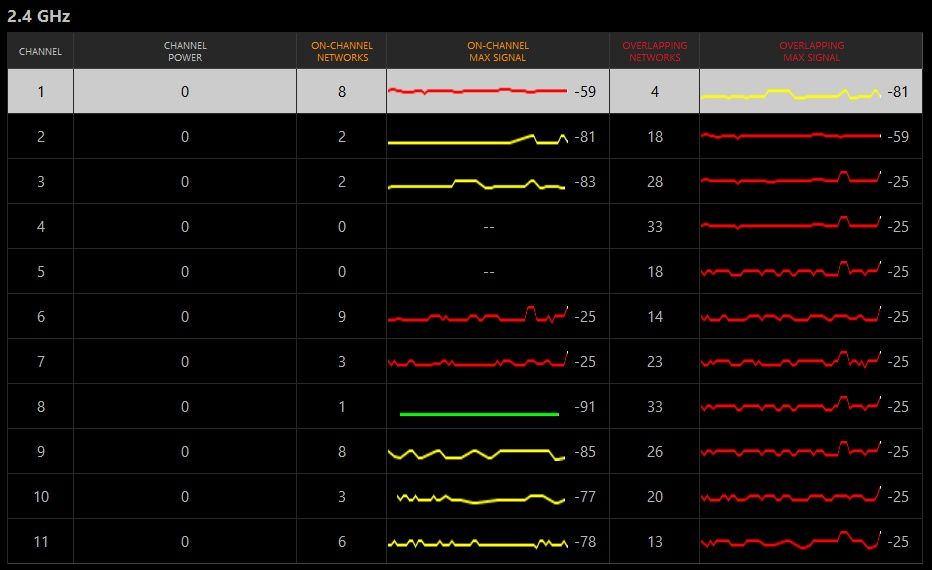
Hmm, it looks like this could be the problem.

channels_zps0defe5a4.jpg


Nothing very clear. I was on channel 1 (set to "auto" but arrived on 1) and trying changing a few times, but only made things worse or roughly the same.

I had a linksys wireless router, different model, didn't like it. Yours is one of the slower models, too, just N150. There are much better wireless routers out there. I just bought an (expensive) RT-AC68U by Asus. Much more reliable, much more stable, far better coverage. That's without even buying an AC wireless adapter. With wireless, it pays to get the better stuff.

I figured since Comcast is giving me 50 Mbps and the E800 gets up to 150 Mbps it would be fast enough.


So, possible ideas right now: Better router (perhaps with a 5 ghz band to avoid all this interference), repeater, AC adapter. I'm pretty clueless about wireless connections, but until my recent move I almost always used either ethernet at home.
 
My router has the channel set to auto to avoid overlaps.

Otherwise if Joey McGee's solution does not work, here is a test. Put the router and your computer next to each other and see if you can duplicate the problem. If you cannot then the problem could be something between your router and your computer. To fix you can try to move one or the other until you get a good signal. This may not be very far.
 
I figured since Comcast is giving me 50 Mbps and the E800 gets up to 150 Mbps it would be fast enough.


So, possible ideas right now: Better router (perhaps with a 5 ghz band to avoid all this interference), repeater, AC adapter. I'm pretty clueless about wireless connections, but until my recent move I almost always used either ethernet at home.

The speed ranges are also a proxy for the 'quality' range. The 150 really doesn't mean much, since they are projected numbers that only apply in perfect conditions in a lab. Kind of like your 100 Watt amplifier, it doesn't tell you what the quality of the signal will be in a noisy environment with physical obstacles.

What it seems to mean in practice, from what I have observed, is the number of ariels, for example. The top end routers will have more ariels, to take advantage of the "N" specification. It has the abilty to use multiple signals at once that are bouncing around walls and being degraded with interference.

It also helps to have a good receiver, I bought a PC wireless "N" card that has three ariels.

There is also the size of the aerials, possibly also the power of the transmitter ( I don't know what limits they place on that), or the quality of it transmitter.

My RT-AC68U has three external aerials that are physically quite large. The signal I get from it according to the windows tray icon is stronger than the signal from the old router I threw out. I also noticed the signal quality doesn't drop when it is under heavy load. I can now copy and stream large files consistently without drop out.

Are you in a densely populater area, if there is so much interference?
 
Last edited:
What has worked for me is to get a router (in addition to a wireless modem/router from your ISP) and set it to bridge mode; my router is sitting next to me on my desk and the computer is connected via cat6 cable and I have had months of uptime with no issues of speed or dropped connectivity.

I had to flash my modem with DD-WRT to ensure that the modem could actually go into bridge mode -- many modems are set by the factory so they cannot do such basic functionality.

Nonetheless, it was well worth the trouble of setting it up in that fashion. No more futzing around with channels and interference and so on.
 
My router has the channel set to auto to avoid overlaps.

Mine does too, but there appear to be numerous overlaps on every (2.4 ghz) channel.

The speed ranges are also a proxy for the 'quality' range. The 150 really doesn't mean much, since they are projected numbers that only apply in perfect conditions in a lab. Kind of like your 100 Watt amplifier, it doesn't tell you what the quality of the signal will be in a noisy environment with physical obstacles.

Good to know. I have no problem spending money as long as I think it will actually help.

It also helps to have a good receiver, I bought a PC wireless "N" card that has three ariels.

I'm using a (USB) Atheros AR9271 on my desktop. I also have a D-Link DWA-552 XtremeN Desktop Adapter, but I'm not using it because it doesn't seem to work as well.

For mode I'm using "Mixed" (as opposed to N, B, G, B/G, etc).

Are you in a densely populater area, if there is so much interference?

It's a condo community. 5 other units in my building, other buildings nearby. I was able to detect 32 unique network IDs last night
 
What has worked for me is to get a router (in addition to a wireless modem/router from your ISP) and set it to bridge mode; my router is sitting next to me on my desk and the computer is connected via cat6 cable and I have had months of uptime with no issues of speed or dropped connectivity.

I had to flash my modem with DD-WRT to ensure that the modem could actually go into bridge mode -- many modems are set by the factory so they cannot do such basic functionality.

Nonetheless, it was well worth the trouble of setting it up in that fashion. No more futzing around with channels and interference and so on.

I'll have to look into what bridge mode is. Would it prevent other computers from connecting to my network? I'd like to be able to accommodate anyone who brings a laptop over and also use a laptop myself from time to time.
 
A fun utility is an Android app called Wifi Analyzer

It has around five different graphic reps, which update in real time.

The most useful one to me graphs signal strength of each wifi source and channels. In addition to letting you see who's fighting for what you can see how much overlap there is from adjacent channels.


It's interesting to walk around the apartment with my tablet in hand and see which neighbors' signals get stronger and where.

It helps a little to plot out what channel might be best, although if everybody sets their router to "auto" that doesn't help much.

ETA: The above image is copied from their Play Store page. Here's a Dropbox link to a screenshot from my tablet. There's a bit more detail and gives a better idea of how the graph shows multiple routers on the same channel.

https://www.dropbox.com/s/ycv31nln1vanrt0/Screenshot_2014-05-07-15-25-59.jpg

The forum software wouldn't let me load an image at this resolution and size.
 
Last edited:

Back
Top Bottom